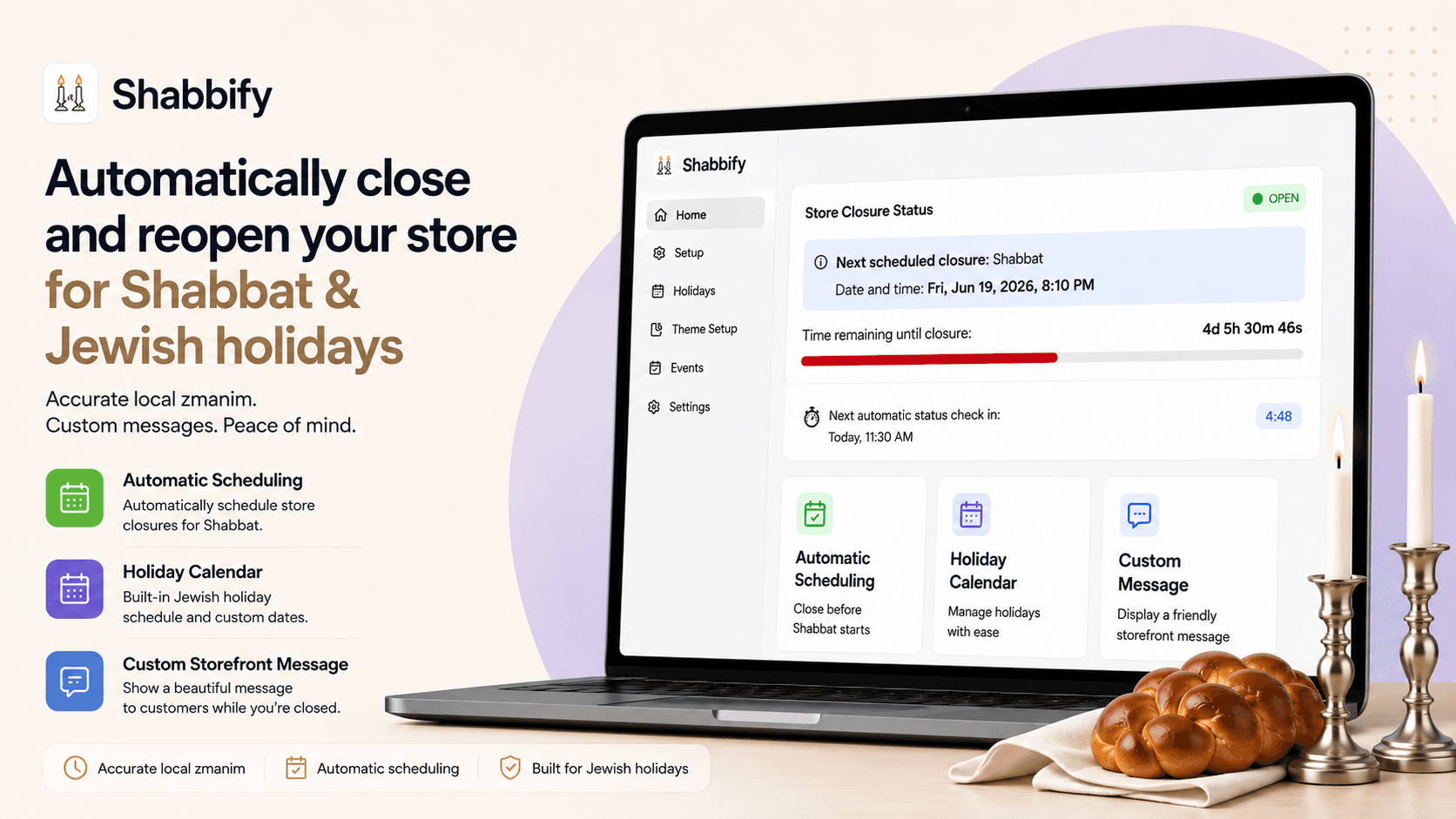
Shabbify automatically closes your Shopify store during Shabbat and Jewish holidays, at sunset-based times you control for your shop’s location. You control the times, what gets blocked, what customers see, and when the store reopens.
This guide covers every feature in the app and how to use it.
What Shabbify does
When your store is closed, Shabbify can:
- Block add to cart — customers cannot add new items
- Block checkout (server-side) — checkout is rejected at Shopify’s checkout step
- Block checkout button — the checkout button on the cart page is disabled
- Block entire site — a full-page overlay with your message and countdown
When your store is open, Shabbify stays invisible to shoppers.
Closure windows are calculated from:
- Weekly Shabbat — a set number of minutes before Friday’s sunset until a set number of minutes after Saturday’s sunset, at your location
- Jewish holidays — auto-generated from the Hebrew calendar (with options to edit or add custom closures)
Quick start
Open Apps → Shabbify → Setup for a step-by-step checklist. The full flow:
| Step | What to do |
|---|---|
| 1 | Settings → check that Enable Shabbify is on (it is on for new installs) |
| 2 | Theme editor → App embeds → turn on Shabbify: Core Logic → Save theme |
| 3 | Add a storefront block (Text Banner or Contact Form) via Theme Setup |
| 4 | Home → set location, Shabbat window, and blocking options |
| 5 | Click Turn on checkout blocking (in the setup guide or on Home). Shabbify adds and turns on the Shabbify – Close checkout rule in Shopify for you |
| 6 | Preview the blocks in the theme editor, then check your storefront during the next closure |
Admin pages overview
| Page | Purpose |
|---|---|
| Home | Live open/closed status, blocking behavior, Shabbat settings, manual close |
| Setup | Interactive onboarding checklist with theme editor links |
| Settings | Master on/off switch, Shabbat timing, Klaviyo (if available) |
| Holidays | View, edit, add, or regenerate holiday closure windows |
| Theme Setup | One-click links to enable the app embed and add blocks |
| Events | Activity log for status changes, notifications, and errors |
Settings
Path: Apps → Shabbify → Settings
Enable Shabbify
The master switch. When disabled, your store stays open during Shabbat and holidays regardless of schedule: no storefront closed state, no checkout blocking, and no status emails. New installs start with it on.
Shabbat configuration
Same options as on Home (see Shabbat & zmanim configuration):
- Closing mode — when Shabbat closure starts: Before sunset (shkiah), or Midday (chatzot)
- Minutes before sunset — how many minutes before sunset to close (default: 18, up to 120)
- Minutes after sunset — how many minutes after sunset to reopen (default: 60, up to 180)
- Location — uses your Shopify store address by default; you can set a custom location if zmanim should be calculated elsewhere
Klaviyo (optional)
To send SMS notifications through your own Klaviyo account, enter your API key and Flow ID here to send SMS notifications when the store reopens to shoppers who signed up during closure.
Home — store status & blocking
Path: Apps → Shabbify → Home
Status dashboard
Shows whether your store is currently OPEN or CLOSED, including:
- Next closure or reopening time
- Live countdown
- Reason (e.g., Shabbat, Yom Kippur)
- Time until the next automatic status check
Use Refresh status if the display looks out of date.
Manual close mode
Forces the store closed immediately, independent of the schedule.
When to use it: emergency closures, closing early before a holiday, or any time you need to block purchases outside the automatic schedule.
To return to normal: uncheck Manual close mode and save. The store will follow the automatic schedule again.
Blocking behavior
Choose one or more options (they can be combined):
| Option | What happens |
|---|---|
| Block add to cart | Customers cannot add items to the cart |
| Block checkout | Checkout is blocked server-side (requires checkout rule — see below) |
| Block checkout button | Checkout button on the cart page is disabled |
| Block entire site | Full-page overlay on every page with your message and countdown |
Requires theme embed: add-to-cart blocking, checkout button blocking, and site overlay need Shabbify: Core Logic enabled in your theme.
Block message
The text customers see when the store is closed. Supports dynamic placeholders (see Message placeholders).
If you leave it blank, shoppers see a default message in their own language, for example:
We're closed for Shabbat. We reopen [[opentime]].
Set times manually
Opens a modal to set exact closure start and end times instead of computed zmanim. Useful for testing or special one-off closures.
Shabbat & zmanim configuration
Shabbify calculates weekly Shabbat windows using kosher-zmanim at your shop’s coordinates and timezone.
| Setting | Description |
|---|---|
| Location | Latitude/longitude for zmanim. Defaults to your Shopify store address. Use custom location if your business follows a different community’s times. |
| Closing mode | Before sunset (shkiah) — close a set number of minutes before sunset; Midday (chatzot) — close at halachic midday (the minutes-before setting isn’t used) |
| Minutes before sunset | How many minutes before sunset the closure starts (default 18) |
| Minutes after sunset | How many minutes after sunset the store reopens (default 60) |
| Rest day | Weekly rest day (typically Friday) |
After changing location or minutes, save your settings. Holidays may be regenerated when timing offsets change.
Holidays
Path: Apps → Shabbify → Holidays
Auto-generated holidays
On install, Shabbify generates holiday closure windows for the current year based on your location and timing settings. Supported holidays include:
- Rosh Hashana, Yom Kippur
- Succos (first/second days, Chol Hamoed, Hoshana Rabah)
- Pesach (first/second days, Chol Hamoed)
- Shavuos, Purim, Tisha B’Av
- Custom — your own named closure periods
Managing holidays
| Action | How |
|---|---|
| View | See all upcoming holidays in the table |
| Edit | Toggle active/inactive, adjust start/end times, customize per-holiday message |
| Add holiday | Create a fully custom closure period |
| Delete | Remove custom holidays you created |
| Regenerate holidays | Re-fetch from the Hebrew calendar for selected year(s) — use after location or timezone changes |
Holidays are also refreshed automatically on a quarterly schedule (January, April, July, October).
Theme setup (storefront)
Path: Apps → Shabbify → Theme Setup
Required: Shabbify Core Logic (app embed)
Theme editor → App embeds → Shabbify: Core Logic → Enable → Save
This powers:
- Add-to-cart blocking
- Checkout button blocking
- Full-site overlay
- Live status updates from the Shabbify API
Without this embed, blocking and overlays will not work on your storefront.
Storefront blocks
Add these in the theme editor (Online Store → Themes → Customize):
Shabbify: Text Banner
A banner with your closure message and live countdown.
| Setting | Description |
|---|---|
| Force display | Preview the banner in the theme editor only; on the live store it appears only during closure |
| Position | Normal, fixed top, or fixed bottom |
| Colors, padding, typography | Match your theme |
| Message | Richtext with [[opentime]] and [[countdown]] placeholders |
Tip: Place in the header for maximum visibility.
Shabbify: Contact Form
A popup or inline form during closure so shoppers can leave their phone number to be notified when you reopen.
Normally appears on the live storefront only after you save a Klaviyo API key and Flow ID in Settings. You can still preview it in the theme editor, or turn on Force display to test the form on the live storefront without Klaviyo.
| Setting | Description |
|---|---|
| Desktop/mobile display mode | Popup or inline |
| Overlay colors & blur | Customize appearance |
| Form copy | Heading, description, button text, success/error messages |
| Force display | Show the form on the live storefront for testing (also works without Klaviyo) |
Requires Klaviyo setup for SMS delivery (see SMS notifications). Without Klaviyo, Force display lets you test the form UI, but signup SMS will not send.
Shabbify: Cart Warning
Injects a closure warning and optional SMS signup into your cart drawer or cart page.
| Setting | Description |
|---|---|
| Cart CSS selector | CSS class for your theme’s cart container (e.g. .mini-cart__items) |
| Header, description, phone label | Customize copy |
| Colors | Match your theme |
Replacing older blocks
Older blocks (Shabbify Messaging, Shabbify Klaviyo - HP, Shabbify Klaviyo - Cart) were removed. If your theme still references one of them, replace it in the theme editor:
| Old block | Use instead |
|---|---|
| Shabbify Messaging | Shabbify: Text Banner |
| Shabbify Klaviyo - HP | Shabbify: Contact Form |
| Shabbify Klaviyo - Cart | Shabbify: Cart Warning |
You can also open Apps → Shabbify → Theme Setup for one-click add links.
Checkout blocking
Checkout blocking has two parts:
1. Enable in Shabbify (Home)
Check Block checkout under Blocking behavior and save.
2. Turn on the Shopify checkout rule (one-time)
Click Turn on checkout blocking in the setup guide or in the checkout card on Home. Shabbify adds the Shabbify – Close checkout rule in Shopify and turns it on. The card then shows whether the rule is on, so you can always check it.
If the button can't turn the rule on (for example, your store already has the maximum number of checkout rules), add it by hand:
- Go to Shopify Admin → Settings → Checkout
- Scroll to Checkout rules
- Click Add rule
- Select Shabbify – Close checkout
- Set the rule to Active
- Click Save
Without this rule, server-side checkout blocking will not work. Client-side checkout button blocking still works via the theme embed.
Checkout banner
When checkout blocking is enabled and the store is closed, a warning banner automatically appears at checkout with your message, reopen time, and countdown. No extra setup is required.
SMS notifications (Klaviyo)
When Klaviyo is configured, shoppers can sign up during closure to receive an SMS when your store reopens.
Setup
- Settings → enter Klaviyo API key and Flow ID → Save
- Add a Contact Form or Cart Warning block to your theme
- Shoppers enter their phone number during closure
- When the store reopens, Shabbify triggers your Klaviyo flow to send the SMS
The Contact Form block stays hidden on the live storefront until both Klaviyo fields are saved, unless Force display is enabled for testing.
Requirements
- Klaviyo account with an SMS flow configured
- Contact Form or Cart Warning block on your storefront
Languages
Shabbify speaks your shoppers’ and your team’s language. These languages are included:
- English
- Hebrew (right to left)
- Spanish
- French
- Russian
- Portuguese
- German
| Where | Language used |
|---|---|
| Shabbify admin | Your Shopify admin language |
| Storefront banner, overlay and blocks | The shopper’s storefront language |
| Checkout message | The shopper’s checkout language |
| Emails to you | Your store’s primary language |
Messages you type yourself are shown exactly as you wrote them. Leave a message blank to show Shabbify’s default in each shopper’s language.
Shopify Sidekick
You can ask Sidekick, Shopify’s admin assistant, about Shabbify. For example:
- “Is my store closed right now?”
- “When does the store close this Friday?”
- “Why can customers still check out?”
- “What’s left in my Shabbify setup?”
Sidekick answers with your open or closed status and the reason, your closures and holidays for the coming days, a checkout-blocking check with links to fix any issues, your setup progress and recent activity.
Sidekick can read Shabbify but can’t change your settings. When you want to change something, it links you to the right Shabbify page, and you save the change there.
Message placeholders
Use these in block messages (admin or theme editor):
| Placeholder | Replaced with |
|---|---|
[[opentime]] | Formatted reopen time (e.g., "Saturday at 8:42 PM") |
[[countdown]] | Live countdown until the store reopens |
Example:
We are closed for Shabbat and will reopen at [[opentime]]. Time remaining: [[countdown]]
Events log
Path: Apps → Shabbify → Events
A paginated timeline of app activity:
- Store status changes (open ↔ closed)
- Notification signups
- Klaviyo events (if enabled)
- Errors and workflow completions
Useful for auditing and troubleshooting.
Troubleshooting
Store isn’t closing during Shabbat
- Confirm Enable Shabbify is on in Settings
- Check Home — is status showing CLOSED?
- Verify your location and minutes before/after are correct
- Click Refresh status on Home
- On Holidays, confirm the relevant holiday is active
Blocking doesn’t work on the storefront
- Enable Shabbify: Core Logic app embed in the theme editor
- Save the theme
- Confirm the correct block levels are checked on Home
Checkout still works when closed
- Enable Block checkout on Home
- Check the checkout card on Home. If the rule isn't on, click Turn on checkout blocking (see Checkout blocking)
Banner doesn’t appear
- Add a Text Banner or Contact Form block in the theme editor
- On the live store, banners only show during closure (use Force display in the editor to preview styling)
- Confirm the app embed is enabled
Wrong reopen/close times
- Check location — zmanim are calculated from coordinates
- Adjust minutes before and minutes after to match your minhag
- On Holidays, edit individual holiday times or Regenerate holidays after location changes
I don’t see closure behavior
- Confirm Enable Shabbify is on in Settings
- Confirm the Shabbify: Core Logic app embed is on in your theme
- Visit the storefront during a closure window (or use manual close mode)
FAQ
Does Shabbify work automatically after install?
Partially. Shabbify is on and holidays are seeded on install, but you must complete setup: theme embed, blocking options, and the checkout rule.
Can I close the store outside of Shabbat/holidays?
Yes. Use Manual close mode on Home for immediate closure, or Add holiday on the Holidays page for scheduled custom closures.
Can I keep the store open during a scheduled closure?
Use manual override options in the admin (Manual close mode off, or force-open via support if needed).
What happens if Shabbify’s API is temporarily unavailable?
Storefront extensions read shop metafields and use cached zman data. The app is designed to fail safely and avoid blocking purchases due to transient errors unless you have explicitly configured closure.
Do I need every theme block?
No. Minimum setup:
- Core Logic app embed (required for blocking)
- At least one messaging block (Text Banner recommended)
- Checkout validation rule (required for server-side checkout blocking)
How often does status update?
A background job recalculates status continuously (approximately every minute). Home shows a countdown to the next check.
Can I use Shabbify with multiple themes?
Enable the app embed and add blocks on your live/published theme. Repeat for other themes if you switch themes frequently.
Does Shabbify slow down my storefront?
No. While your store is open, Shabbify adds nothing to your pages: no scripts, no stylesheets, no network requests. The app embed and theme blocks only load their code starting 24 hours before a scheduled closure, during the closure, when you manually close the store, or inside the theme editor.
If you run a speed test (Google PageSpeed, Lighthouse, etc.), run it while the store is open and compare against a run with the app embed turned off. The two should be indistinguishable. If you test during Shabbat or a holiday, the blocking script is active and will show up in the results; that is expected.
Need more help?
Contact Shabbify support through the help widget in the app, email shabbify@strongerecommerce.com, get in touch, or visit the Shopify App Store listing.